Pocket shut down on July 8, 2025, after years spent helping millions of people save articles for later. If you still have an export file sitting somewhere — or you're only now getting around to dealing with it — here's what to actually do with it.
Step 1: Get your export file
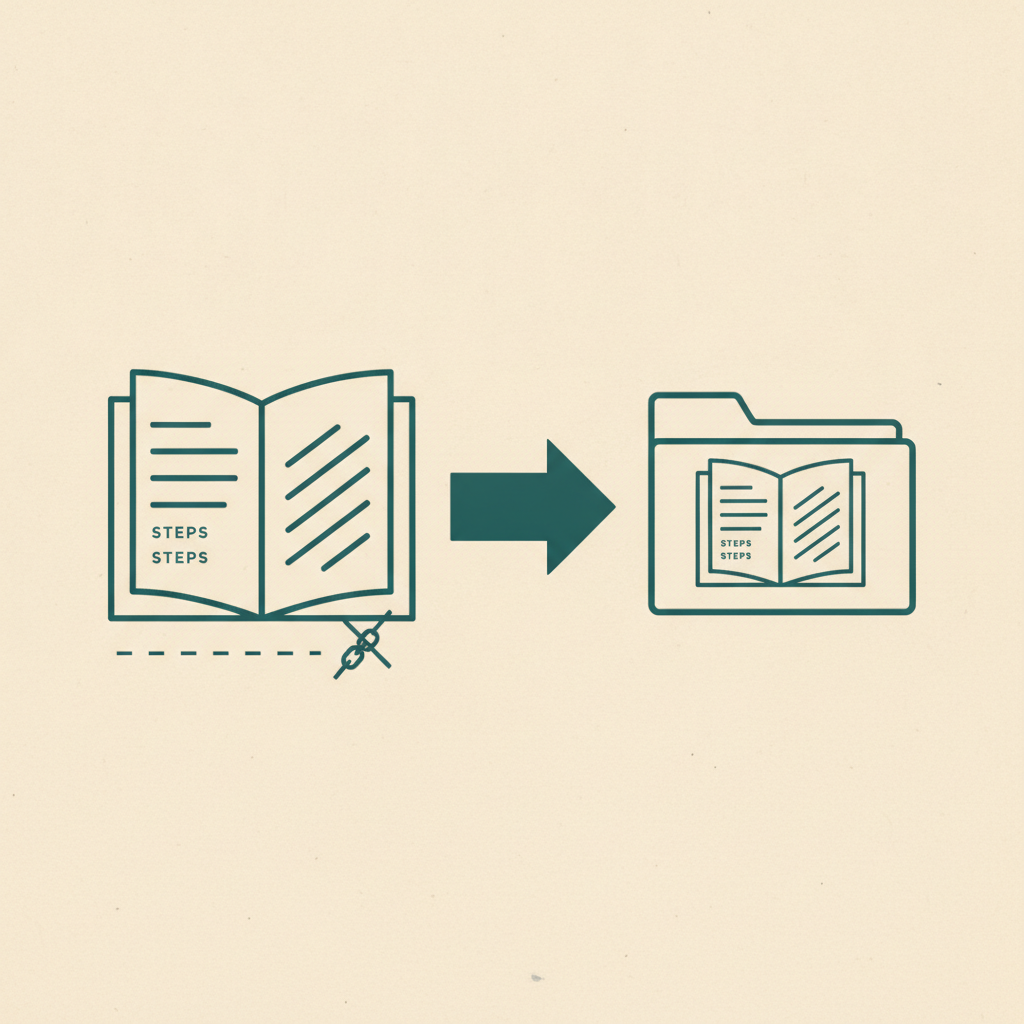
If you exported before Pocket shut down, you should have an HTML file (usually named something like ril_export.html) or a CSV. It's a flat list of every URL you ever saved, with the date and any tags you applied.
If you never exported and Pocket's export tool is no longer reachable, check whether you're signed into Pocket on any old device or browser session — some third-party tools cached exports during the shutdown window. If the data's genuinely gone, there's no recovery path; Mozilla did not offer post-shutdown data retrieval.
Step 2: Decide what you actually need from a replacement
Pocket did one thing: save articles for offline reading. Before picking where those links go, it's worth being honest about whether that's still all you need, or whether your saving habits have moved beyond plain articles — most people's have. If you're now saving from TikTok, Instagram, or Google Maps as often as you save articles, a Pocket-shaped tool (article-only, no extraction) will leave you doing manual work everywhere else.
- If you only save articles and want clean offline reading: Instapaper and Raindrop.io are both close, direct replacements for what Pocket did.
- If your saving has expanded past articles: you need something that also handles TikTok, Instagram, YouTube, and Maps — which is where Omniteca fits, since it treats an article the same way it treats a recipe video: extract what matters, file it under the right category.
See the full comparison of bookmark managers if you want the detailed feature-by-feature breakdown.
Step 3: Import the export file
Most replacement tools accept Pocket's HTML export format directly, since it's the same format browsers use for bookmark exports (a plain <DL>/<DT> list of links). Look for an "Import bookmarks" or "Import from Pocket" option in your new tool's settings.
Omniteca doesn't currently have a one-click Pocket importer — for now, the fastest path is opening the export file, and re-saving anything you actually still want via the Chrome extension or by pasting the URL into the app. This is also a good forcing function: if you haven't touched a saved article in a year, it's a reasonable moment to just let it go rather than migrate it — see one year without Pocket for what actually happened to the people who didn't.
Step 4: Re-save going forward with something built for how you actually save now
Whatever you migrate, the more useful change is upgrading how new saves work going forward. Instead of saving a link and reading it cold later, Omniteca extracts the useful part immediately — the recipe's ingredients, the place's address, the film's cast — so future-you doesn't have to re-read the whole thing to remember why you saved it.
Start your library fresh with Omniteca — free to start, no import required, just start saving from where you already are.
Frequently asked questions
Do I need to import my Pocket export file into Omniteca?
No — Omniteca doesn't have a one-click Pocket importer. The fastest path is opening your export file, skimming for what you actually still want, and re-saving those specific articles via the Chrome extension or by pasting the URL. Anything you haven't touched in a year is usually safe to leave behind.
What happens to my Pocket data if I never exported it?
Check whether you're still signed into Pocket on an old device or browser session — some third-party tools cached exports during the shutdown window. If the data's genuinely gone, there's no recovery path; Mozilla did not offer post-shutdown data retrieval.
Is Instapaper or Raindrop.io a better Pocket replacement than Omniteca?
If you only ever saved articles and want the exact same experience, yes — Instapaper and Raindrop.io are closer, direct replacements. Omniteca fits better once your saving habits include TikTok, Instagram, or Google Maps alongside articles.