You see the outfit mid-scroll, or the product someone's holding up in a demo video, and you do the thing everyone does: screenshot it, tell yourself you'll come back to it, and keep scrolling. Three weeks later you're looking at a camera roll with forty screenshots in it and no idea which one was the jacket, which was the skincare thing, and which was someone's dog.
The screenshot only remembers what it looked like
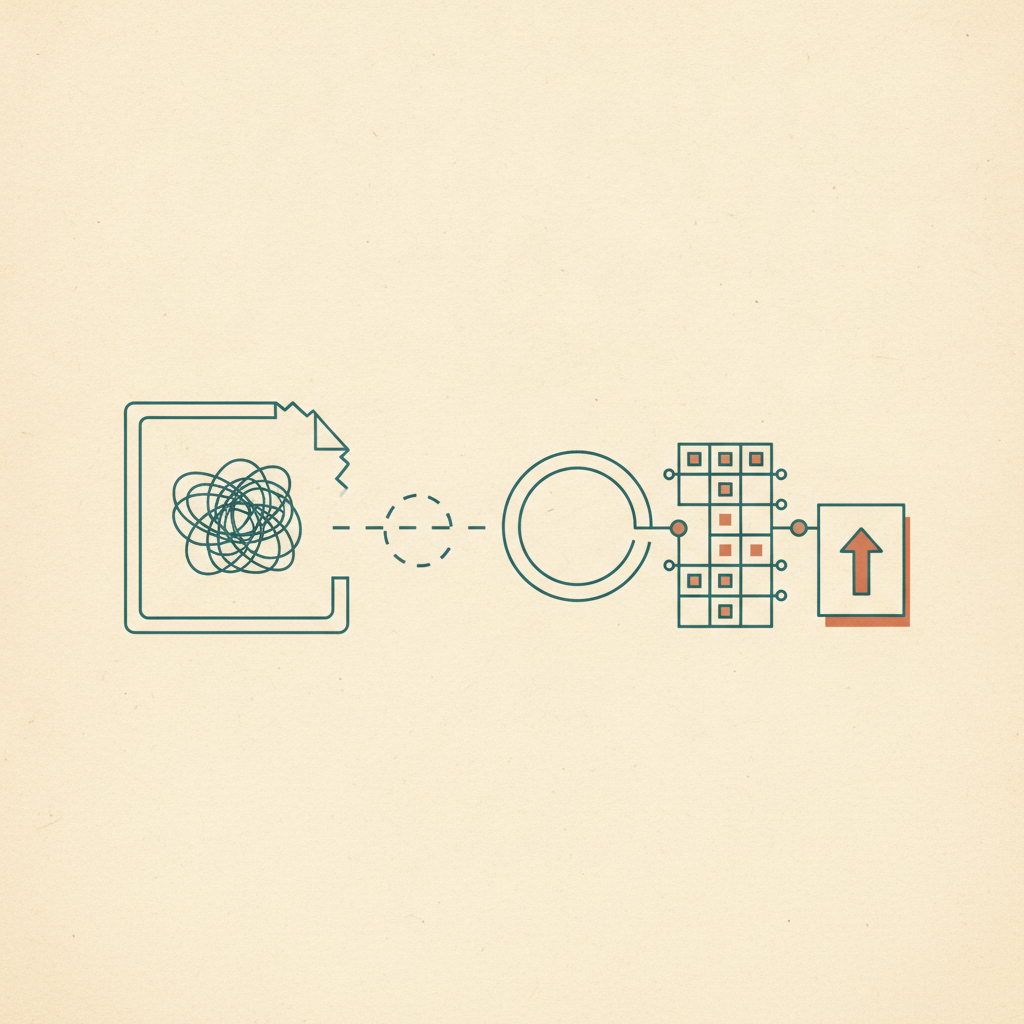
A screenshot captures pixels, not information. It doesn't know the brand, the product name, the price, or where to actually buy the thing — all of that lived in the caption, the comments, or a link that was on-screen for two seconds before you tapped the button. What you're left holding is a picture of a picture, with none of the context that made it worth saving in the first place.
Your phone's photo search doesn't solve this
iOS and Android can both search your photos now, and it feels like it should be enough — until you actually try it. Searching "shoes" surfaces every screenshot that vaguely contains shoes, sorted by nothing useful, with no brand, no price, and no way back to the original post. It's object recognition, not shopping memory. It gets you to the right kind of screenshot, never the right one.
Where this actually starts
Almost nobody screenshots a product from a shopping site. It happens mid-scroll — a TikTok haul video, an Instagram Reel, a friend's story with a tagged brand. The moment is fast, the intent is real, and the screenshot is a reflex: capture something before the feed moves on, sort it out later. The "later" part is the one that never actually happens.
A screenshot remembers what something looked like. It forgets what you'd need to actually buy it.
Share the post, not a picture of it
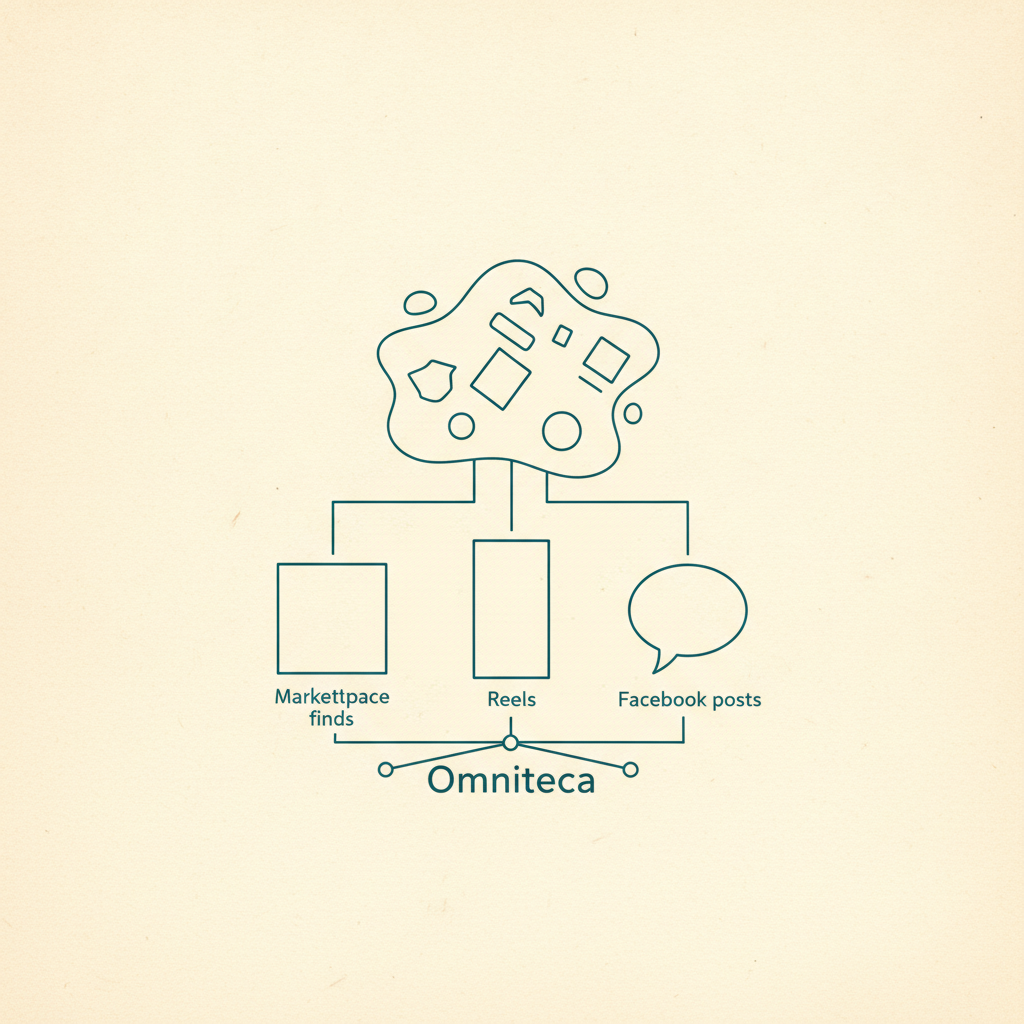
The fix isn't a smarter way to search your camera roll — it's not taking the screenshot at all. Share the post or video straight to Omniteca instead, the same one tap you'd use to screenshot it, and Gemini reads the caption, the on-screen text, and the video itself to pull out what actually matters: brand, product name, color or size when it's shown, price, and a link back to where it came from. A fashion haul gets filed under Fashion with the brand and product name attached; a gadget or home find gets filed under Products with the price and a shopping link when one exists.
This is different from a general save-everything tool like mymind, which stores what you send it but leaves you to work out what it actually is later. Here the category and the details are attached the moment you save — not something you reconstruct from memory afterward, and not something buried in an unlabeled grid of screenshots either. It's the same idea behind keeping everything you save in one organized place: sorted by what it is, not by when you happened to capture it.
Finding it again
The real test isn't how fast the save was — it's whether "that jacket from last week" is a search instead of a scroll. With a screenshot, that search is your own eyes against forty thumbnails. With a save that came in through the share sheet, it's typing "jacket" and getting the actual product, brand attached, link intact.
Save the next thing you almost screenshotted — share it to Omniteca instead, free to start.
Frequently asked questions
How do I find a product I screenshotted weeks ago?
If it's already just an image sitting in your camera roll, the honest answer is you're stuck scrolling and eyeballing it — your phone can search screenshots for broad objects like "shoes," but not for the brand, price, or where to buy. Going forward, share the original post instead of screenshotting it, so the details get pulled out and stay searchable.
Why can't I just search my camera roll for the product?
Phone photo search recognizes what's broadly in an image — a bag, a pair of sneakers — not the specific brand, product name, or price written in the caption or overlaid on the video. It also can't take you back to where you found it, since a screenshot has no link attached.
What's the difference between screenshotting a product post and saving it directly?
A screenshot is just pixels — whatever a phone's built-in search can guess from the image. Sharing the post directly to a save tool like Omniteca instead lets Gemini read the caption and video, pull out the brand, product name, price, and a link when one exists, and file it under Products or Fashion automatically.